สร้างวิดีโอแรกของคุณ
ใน 5 นาที
ทำตามทีละขั้นตอน ไม่ต้องมีประสบการณ์ — เริ่มได้เลยฟรี
ก่อนเริ่ม — เครดิตของคุณ
ทุกบัญชีเริ่มต้น ฟรี 10 เครดิต วิดีโอแบบสั้น 1 คลิปใช้ราว ๆ 4 เครดิต ดูยอดเครดิตได้ที่มุมขวาบนเสมอ

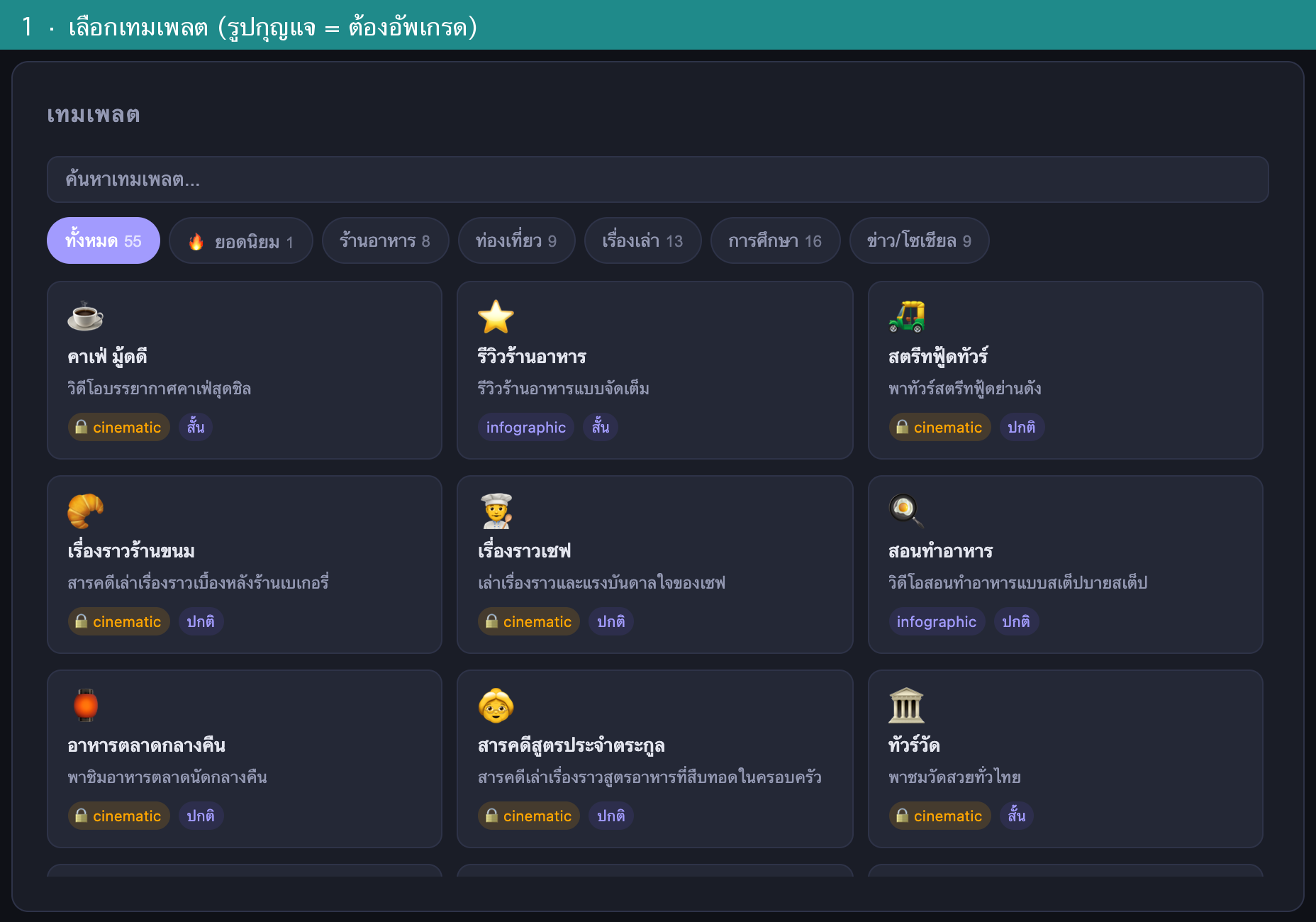
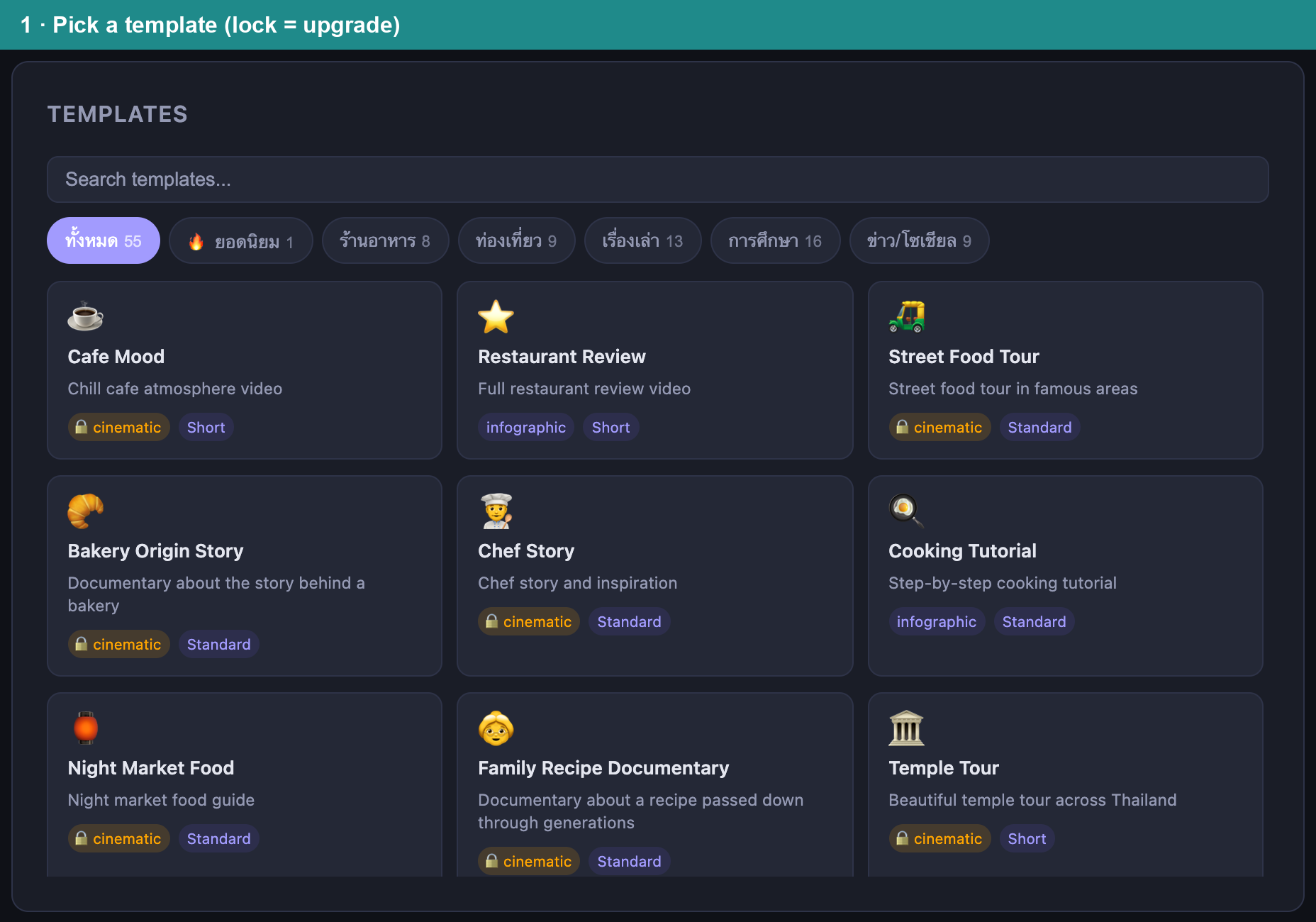
เลือกเทมเพลต (หรือข้ามก็ได้)
เลือกแนวเรื่องที่ใกล้เคียงกับสิ่งที่อยากเล่า เพื่อให้ AI วางโครงเรื่องให้ เทมเพลตที่มี รูปกุญแจ คือแบบพรีเมียม ต้องอัพเกรดก่อนใช้
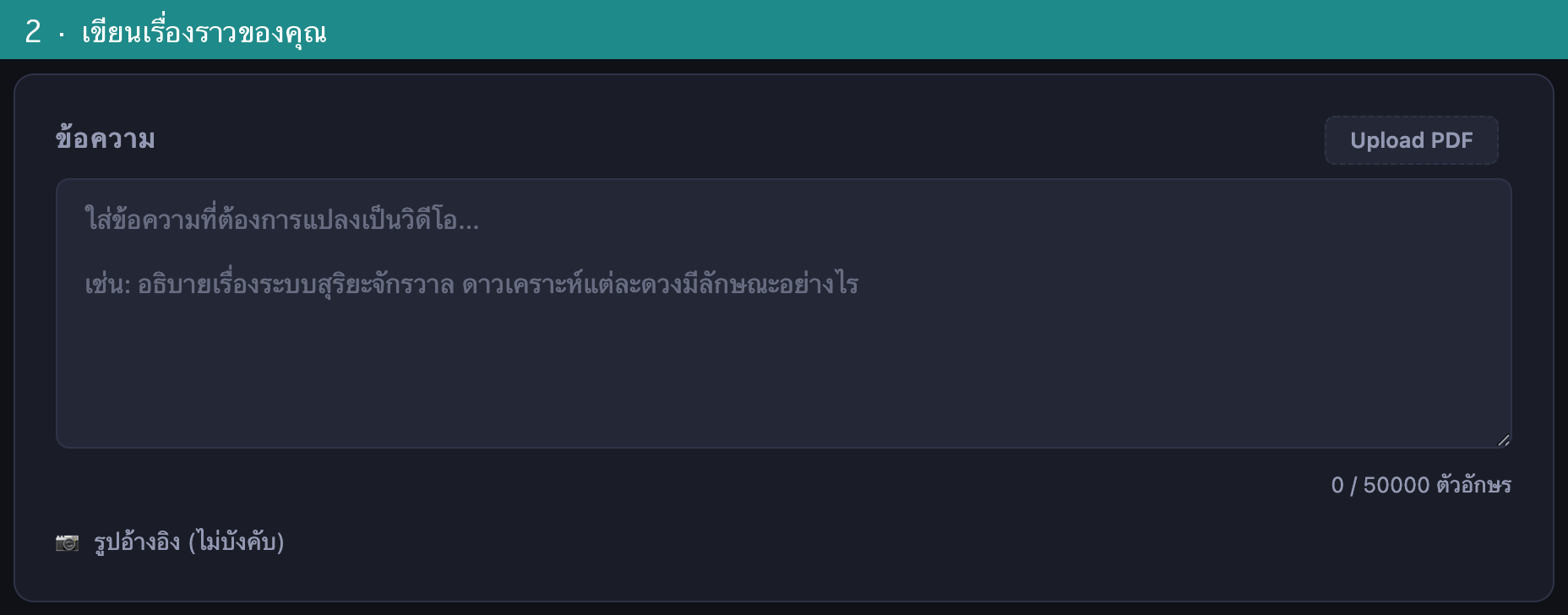
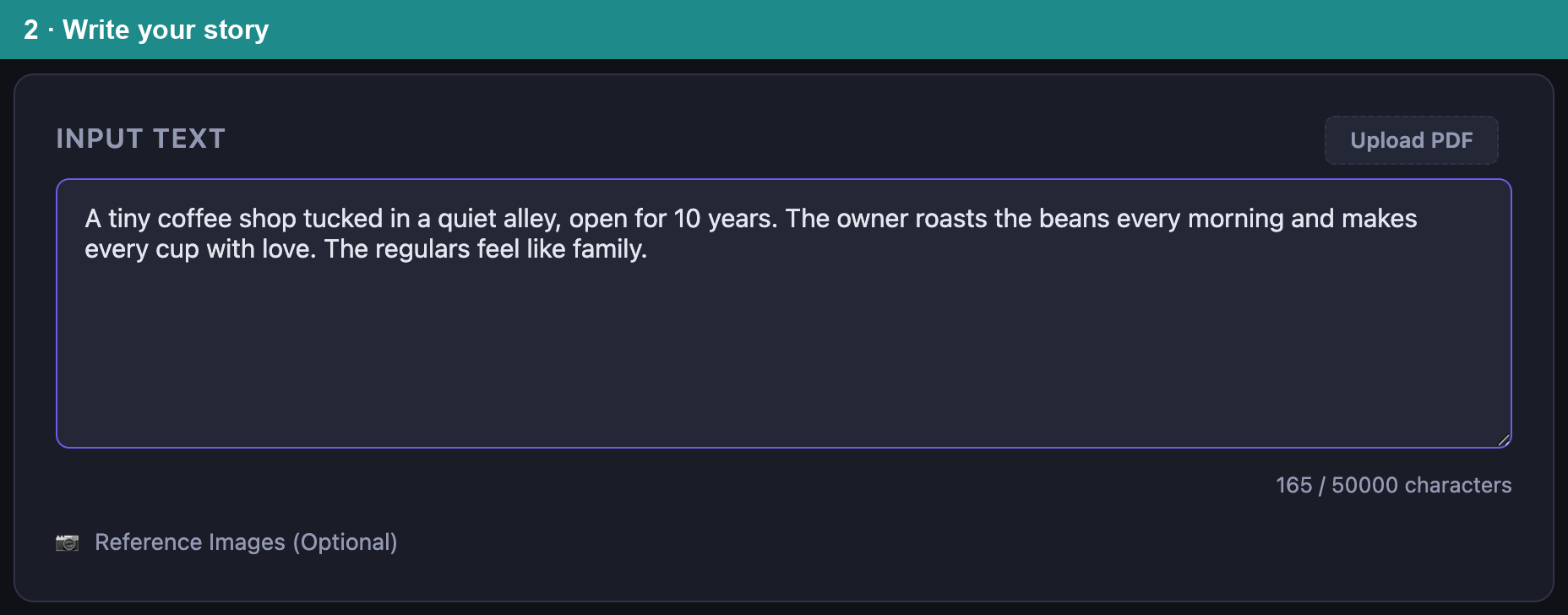
เขียนเรื่องราวของคุณ
พิมพ์เรื่องที่อยากเล่าลงในช่อง “ข้อความ” เป็นภาษาไทยได้เลย เล่าให้เหมือนเล่าให้เพื่อนฟัง — ยิ่งมีรายละเอียด ภาพยิ่งตรงใจ
เลือกความยาววิดีโอ
มือใหม่แนะนำ “สั้น ~1 นาที” (เหมาะกับ TikTok / Reels / Shorts) ความยาวอื่น ๆ ที่ยาวกว่าจะใช้ได้เมื่ออัพเกรดเป็น Starter ขึ้นไป

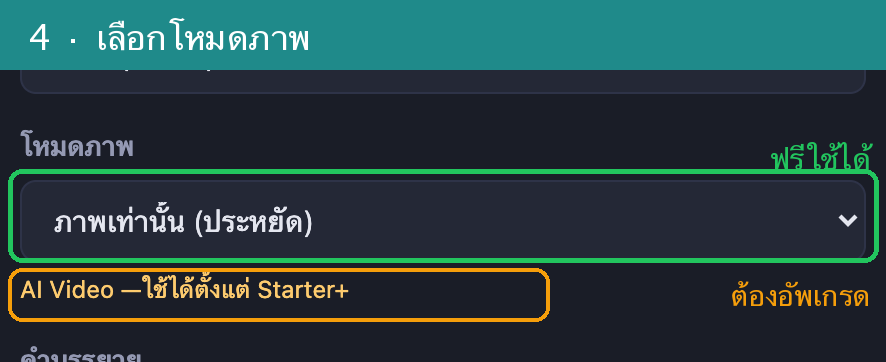
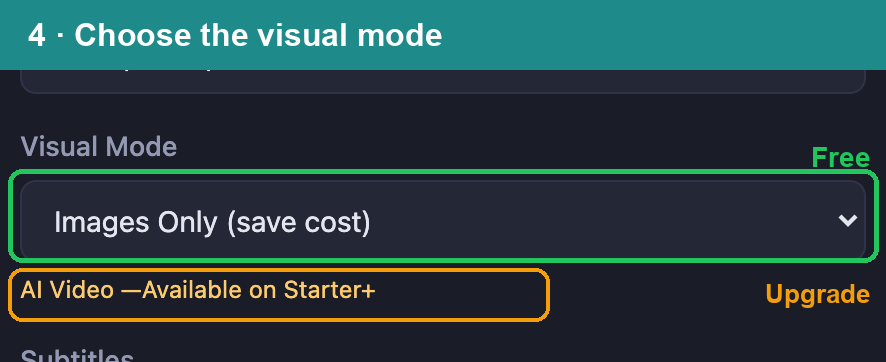
เลือกโหมดภาพ (จุดที่คนสับสนบ่อย)
โหมดภาพมี 2 แบบ — ภาพเท่านั้น ใช้ได้ฟรี (สไลด์โชว์ภาพนิ่ง + เสียงบรรยาย) ส่วน AI Video เป็นภาพเคลื่อนไหวจริง ต้องอัพเกรดเป็น Starter ก่อน สำหรับวิดีโอแรกฟรี ใช้ “ภาพเท่านั้น” ได้เลย
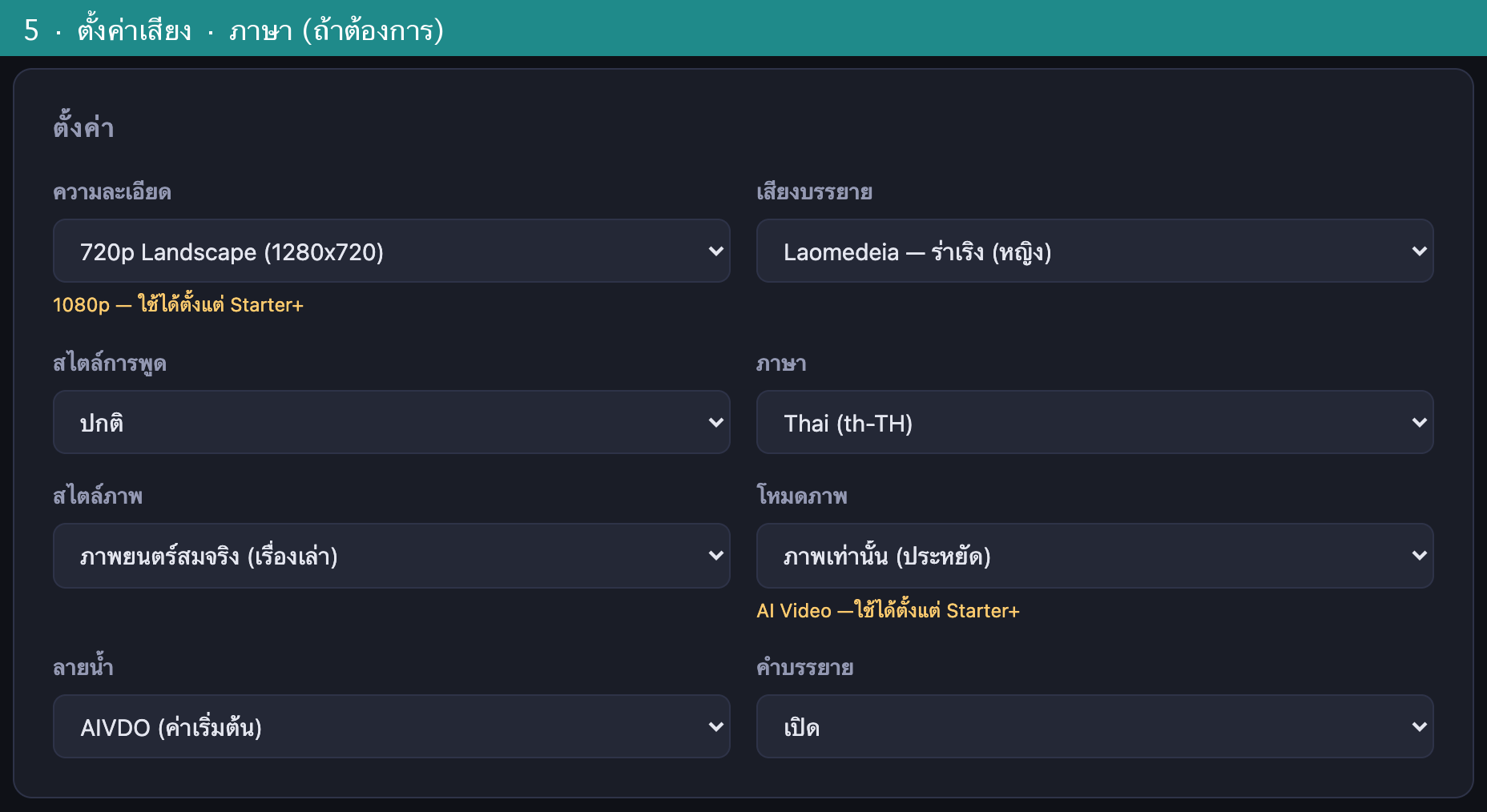
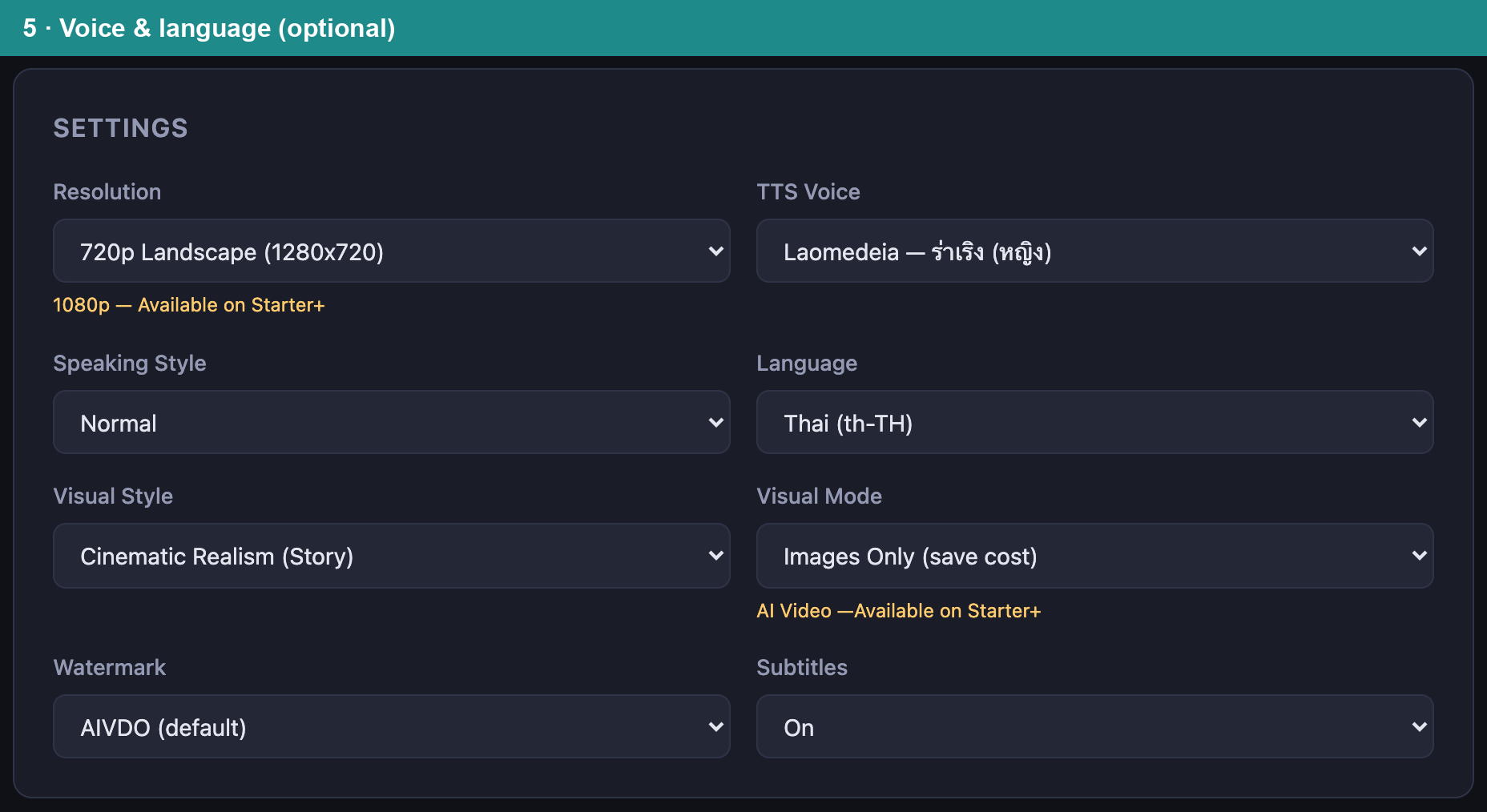
ตั้งค่าเสียงและภาษา (ถ้าต้องการ)
เลือกเสียงบรรยาย สไตล์การพูด และภาษาได้ตามชอบ — หรือปล่อยค่าเริ่มต้นไว้ก็สวยแล้ว ไม่ต้องตั้งอะไรเพิ่มก็สร้างได้
เช็คเครดิต แล้วกด “สร้างวิดีโอ”
ระบบจะบอก ค่าใช้จ่ายโดยประมาณ ก่อนเสมอ ถ้าเครดิตพอ กดปุ่ม “สร้างวิดีโอ” สีเขียวได้เลย ปกติใช้เวลา 15–40 นาที เสร็จแล้วระบบส่งลิงก์เข้าอีเมล ปิดหน้านี้ได้เลย

เข้าใจให้ลึกขึ้นอีกนิด
4 เรื่องที่มือใหม่ถามบ่อย
เครดิตคืออะไร?
เครดิตคือหน่วยที่ใช้สร้างวิดีโอ ทุกบัญชีได้ฟรี 10 เครดิต วิดีโอสั้นแบบภาพนิ่งใช้ราว 4 เครดิต เมื่อเครดิตหมด สามารถอัพเกรดแพ็กเกจเพื่อรับเครดิตเพิ่มทุกเดือน
โหมดภาพต่างกันยังไง?
ภาพเท่านั้น = สไลด์โชว์ภาพนิ่งสวย ๆ พร้อมเสียงบรรยาย — เร็ว ประหยัด ใช้ได้ฟรี
AI Video = ภาพขยับจริงเหมือนถ่ายวิดีโอ — สวยกว่า ใช้เครดิตมากกว่า และต้องเป็นสมาชิก Starter ขึ้นไป
รูปอ้างอิง (ไม่บังคับ) คืออะไร?
ถ้าอยากให้วิดีโอใช้รูปของคุณเอง อัปโหลดได้ที่ “รูปอ้างอิง” ใต้ช่องข้อความ ข้อควรรู้: เมื่อใส่รูปอ้างอิง ระบบจะใช้โหมดภาพนิ่งให้อัตโนมัติ
อัพเกรดแล้วได้อะไร?
แพ็กเกจ Starter ขึ้นไปปลดล็อก โหมด AI Video (ภาพเคลื่อนไหว), วิดีโอที่ยาวขึ้น, ความละเอียด 1080p, เทมเพลตพรีเมียม และเครดิตรายเดือนมากขึ้น
ติดปัญหา?
คำถามที่พบบ่อย
ขึ้นว่า “เครดิตไม่พอ” ทำยังไง?
วิดีโอที่เลือกใช้เครดิตมากกว่าที่เหลืออยู่ ลองเลือกความยาวสั้นลง หรือใช้โหมด “ภาพเท่านั้น” ซึ่งประหยัดที่สุด หรืออัพเกรดแพ็กเกจเพื่อรับเครดิตเพิ่ม
ทำไมวิดีโอเป็นภาพนิ่ง ไม่ขยับ?
บัญชีฟรีใช้โหมด “ภาพเท่านั้น” (สไลด์โชว์) ภาพจึงไม่เคลื่อนไหว ถ้าต้องการภาพขยับจริง ต้องอัพเกรดเป็น Starter เพื่อปลดล็อกโหมด AI Video
ใช้เวลาสร้างนานแค่ไหน?
วิดีโอสั้นปกติใช้ราว 15–40 นาที ระบบจะแจ้งความคืบหน้า และส่งอีเมลแจ้งเมื่อเสร็จ ไม่ต้องเปิดหน้าจอค้างไว้ก็ได้
วิดีโอที่ได้เอาไปใช้ที่ไหนได้บ้าง?
ดาวน์โหลดเป็นไฟล์ MP4 ไปลง TikTok, Reels, YouTube Shorts, Facebook หรือที่ไหนก็ได้ตามต้องการ
AIVDO มีอีก 3 แอปหลัก
คู่มือด้านบนคือ 🎬 Video Studio — ถ้าอยากทำอย่างอื่น เลือกได้จากนี่
🎓 AIVDO Learn — สื่อการสอนจากบทเรียน
วางเนื้อหาบทเรียนหรืออัปโหลด PDF → ได้วิดีโอสอนพร้อมเสียงบรรยาย และเลือกรับสไลด์นำเสนอเพิ่มได้ ตัวเลขและสมการตรงตามต้นฉบับ
- เลือกวิชา แล้ววางเนื้อหาบทเรียน (หรืออัปโหลด PDF)
- เลือกความยาว (~1 ถึง ~8 นาที) และสไตล์ภาพ
- กดวิเคราะห์ (ฟรี) — ระบบแสดงโครงบทเรียนและค่าใช้จ่ายโดยประมาณก่อนเสมอ
- ติ๊ก 📊 สไลด์ ถ้าต้องการเด็คนำเสนอด้วย (เริ่ม 2 เครดิต + 3 เครดิต/ภาพประกอบ)
🎬 Motion Ad — วิดีโอเคลื่อนไหวจากรูป 1 รูป
ถูกที่สุดในบรรดาวิดีโอเคลื่อนไหว — 5 เครดิต ได้คลิปแนวตั้งพร้อมเสียงพากย์ เหมาะกับโฆษณาสินค้า หรือคลิปสั้นทุกแบบ
- อัปโหลดรูปสินค้า 1–3 รูป
- เขียนโจทย์สั้น ๆ ว่าอยากได้โฆษณาแบบไหน แล้วเลือกสไตล์
- แก้ข้อความโฆษณาที่ระบบร่างให้ได้ตามใจ แล้วกดสร้าง — เสร็จใน ~5–7 นาที
🌟 Omni Studio — วิดีโอจากรูปถ่ายจริง หน้าเดิมทุกฉาก
อัปโหลดรูปคนจริง (หรือเขียนเรื่องที่มีตัวละครหลักชัดเจน) → วิดีโอเล่าเรื่องที่ตัวละครขยับจริง และหน้าไม่เพี้ยนทุกฉาก
- เขียนเรื่อง แล้วอัปโหลดรูป 1–5 ใบ (รูปหน้าตรง เห็นเต็มตัว ได้ผลดีที่สุด)
- กดวิเคราะห์เรื่อง (ฟรี) — เห็นฉากทั้งหมดก่อนจ่าย
- ดูตัวอย่างหน้าตัวละครก่อนจ่ายได้ แล้วกดสร้าง — เริ่ม 75 เครดิต (คลิปสั้น) / ~1.5 นาที 100 เครดิต / ~3 นาที 200 เครดิต
Make your first video
in 5 minutes
Step by step, no experience needed — start for free
Before you start — your credits
Every account starts with 10 free credits. A short video costs about 4 credits. Your balance is always shown top-right.

Pick a template (or skip)
Choose a style close to your story so the AI can structure it. Templates with a lock are premium — upgrade to use them.
Write your story
Type your story in the “Text” box — any language works. Tell it like you’d tell a friend; more detail means better visuals.
Choose the length
Beginners: pick “Short ~1 min” (great for TikTok / Reels / Shorts). Longer options need Starter or above.

Choose the visual mode (where people get stuck)
Two modes — Images Only is free (a slideshow of stills + narration); AI Video is real motion and needs Starter. For your first free video, Images Only is perfect.
Voice & language (optional)
Pick a narration voice, speaking style and language — or leave the defaults, they look great. You can generate without changing anything.
Check credits, then “Generate”
The app always shows the estimated cost first. If you have enough credits, hit the green “Generate Video” button. Renders usually take 15–40 minutes — we email you the link, so you can close the tab.

A little deeper
4 things beginners ask most
What are credits?
Credits are what you spend to make videos. Every account gets 10 free; a short images-only video costs about 4. When they run out, upgrade for monthly credits.
How do the modes differ?
Images Only = a slideshow of nice stills with narration — fast, cheap, free.
AI Video = real motion like real footage — nicer, costs more credits, and needs Starter+.
What are reference images?
Want your own photos in the video? Upload under “Reference images” below the text box. Note: adding reference images switches to still-image mode automatically.
What does upgrading unlock?
Starter and above unlock AI Video (motion), longer videos, 1080p, premium templates, and more monthly credits.
Stuck?
Frequently asked
It says “not enough credits” — what now?
Your video needs more credits than you have. Try a shorter length, use “Images Only” (the cheapest), or upgrade for more credits.
Why is my video still images, not moving?
Free accounts use “Images Only” (a slideshow), so it doesn’t move. For real motion, upgrade to Starter to unlock AI Video.
How long does it take?
A short video usually takes 15–40 minutes. You’ll see progress, and we email you when it’s ready — no need to keep the page open.
Where can I use the video?
Download the MP4 and post it on TikTok, Reels, YouTube Shorts, Facebook — anywhere you like.
AIVDO has 3 more main apps
The walkthrough above covers 🎬 Video Studio — here's what the others do
🎓 AIVDO Learn — teaching media from lesson content
Paste lesson content or upload a PDF → a narrated teaching video, with an optional slide deck. Numbers and equations stay exactly as written.
- Pick the subject, then paste your lesson (or upload a PDF)
- Choose a length (~1 to ~8 minutes) and a visual style
- Analyze (free) — you always see the lesson outline and estimated cost first
- Tick 📊 Slides if you want a deck too (from 2 credits + 3 per illustration)
🎬 Motion Ad — one photo into a moving video
The cheapest motion on AIVDO — 5 credits for a vertical clip with a voice-over. Product ads or any short clip.
- Upload 1–3 product photos
- Write a short brief and pick a style
- Edit the drafted ad copy if you like, then generate — done in ~5–7 minutes
🌟 Omni Studio — a video from a real photo, same face every scene
Upload photos of a real person (or write a story with one clear main character) → a story video where the character actually moves, with the same face in every scene.
- Write your story, then upload 1–5 photos (sharp, front-facing, full-body works best)
- Analyze the story (free) — see every scene before paying
- Preview the exact face before you pay, then generate — from 75 credits (flash clip) / ~1.5 min 100 credits / ~3 min 200 credits